When you create a new graphic, Smart Graphics asks how you want to begin. You get two paths from the New Graphic dialog.
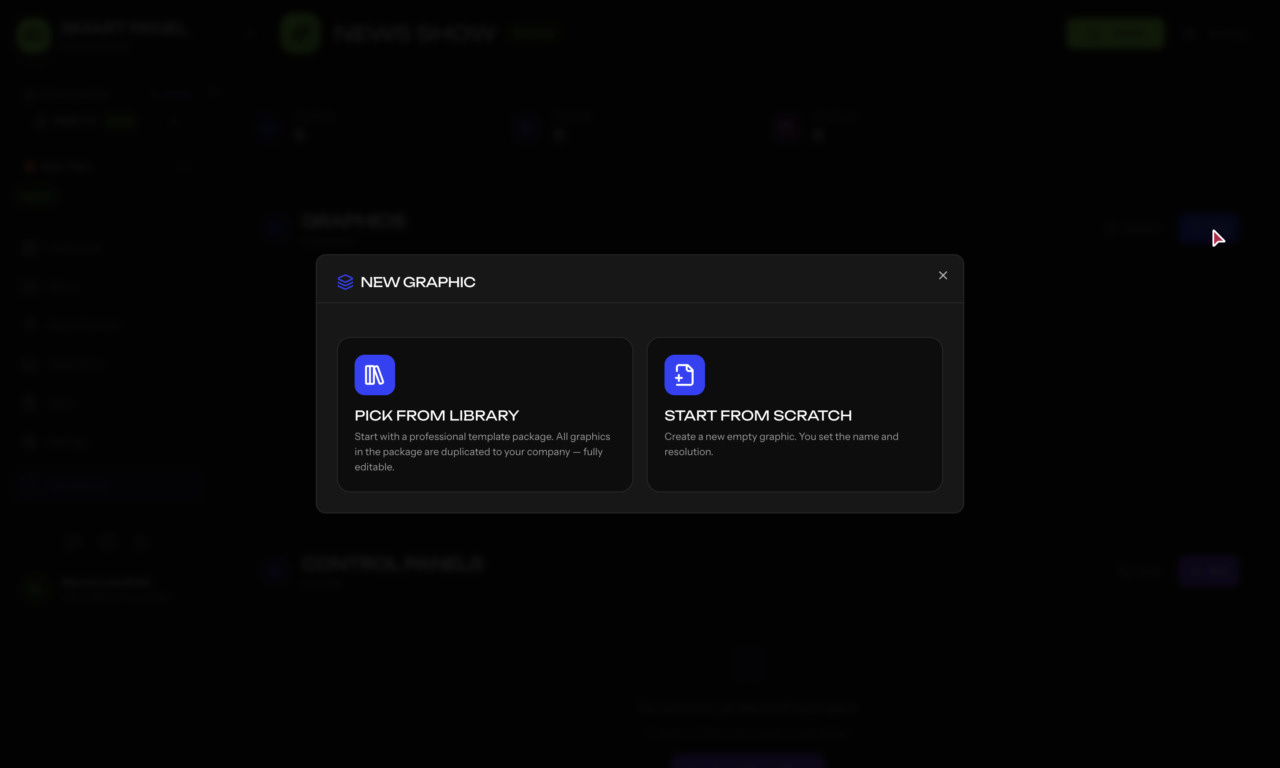
Pick from Library
Start from a professional template package. Every graphic in the package is duplicated into your company — a full, independent copy that you can edit freely without affecting the original.
- Click New Graphic.
- Choose Pick from Library.
- Browse the available template packages and select one.
- The package and all its graphics are copied into your company, ready to edit.
Starter Packs
The library ships with five redesigned Starter Packs, each built for a common production style:
- Podcast — talking-head lower thirds, episode titles, and now-playing bars.
- Church — song lyrics, scripture references, and service announcements.
- Sports — scoreboards, clocks, and team lower thirds.
- Football Reactions — fast reaction bugs, stats, and callouts.
- Universal Tools — a general-purpose kit of clocks, timers, and utility overlays.
Every pack was rebuilt around the newest Smart Graphics features:
- Native seamless tickers — continuous crawlers that fill the full width with no visible restart.
- “Spotlight” blocks — a filtered photo paired with a caption, ready to drop in a name or headline.
- Zoom animations — smooth zoom-in/zoom-out reveals for a polished, modern look.
Start from Scratch